 Design guide
Design guide
Design guide
When accessing your Ragic database, you'll see a list of all available sheets under each tab that you have access rights to on the user Homepage. You can either scroll down to find the sheet that you want to access or navigate from the Tab at the top.
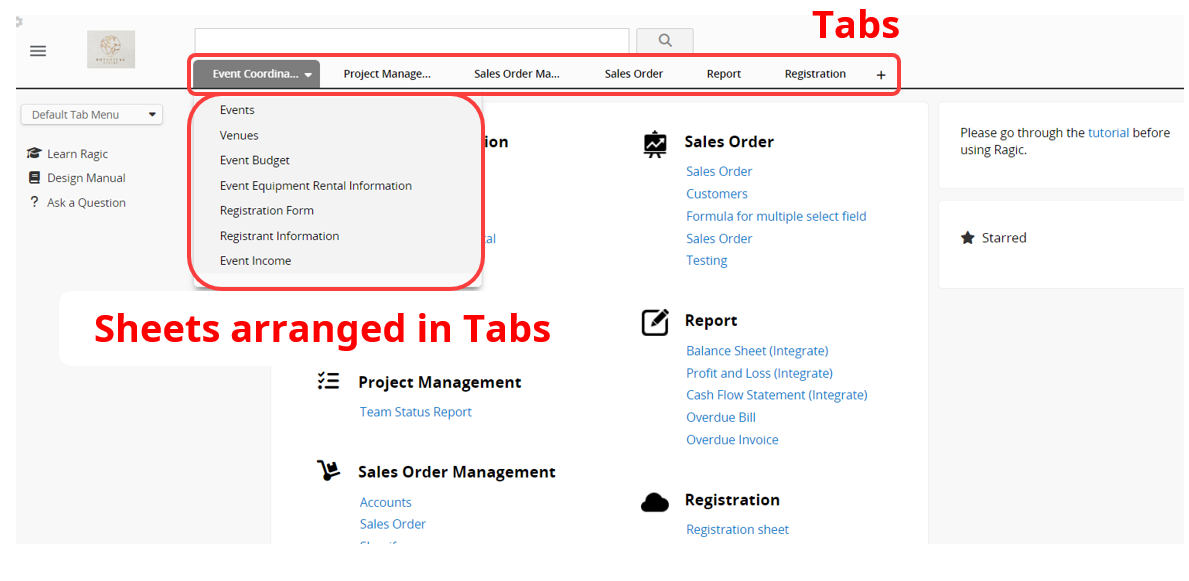
As tabs grow, locating the sheets you need might become a problem. This is when the Tab Menu Set can help. You can categorize tabs into different tab groups (Tab Menu Sets) such as "ERP", "HR", or "Marketing". Each Tab Menu Set will have its homepage.
The tab group that all users are directed to upon logging in by default. It cannot be deleted, renamed, or hidden from users.
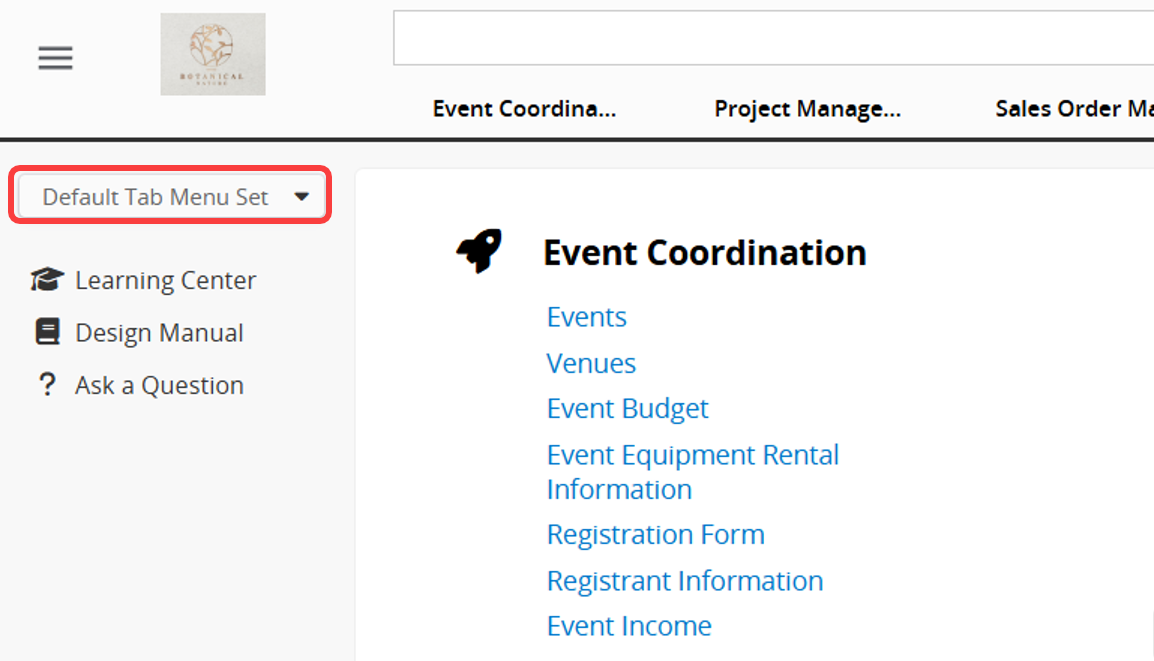
If you want users to be directed to a specified tab group they have access to upon logging in, instead of the default tab group, please refer to this section.
Note: Even if a specific default tab group is set, users can still switch to the Default Tab Menu Set.
Whether a user can see and access a tab group depends on their Access Rights to the tabs and sheets within that group. If a tab group does not contain any sheets that the user has permission to access, the user will not be able to see the tab group.
Note: All users can see and enter the Default Tab Menu Set, but they will not be able to view sheets or tabs they do not have access to.
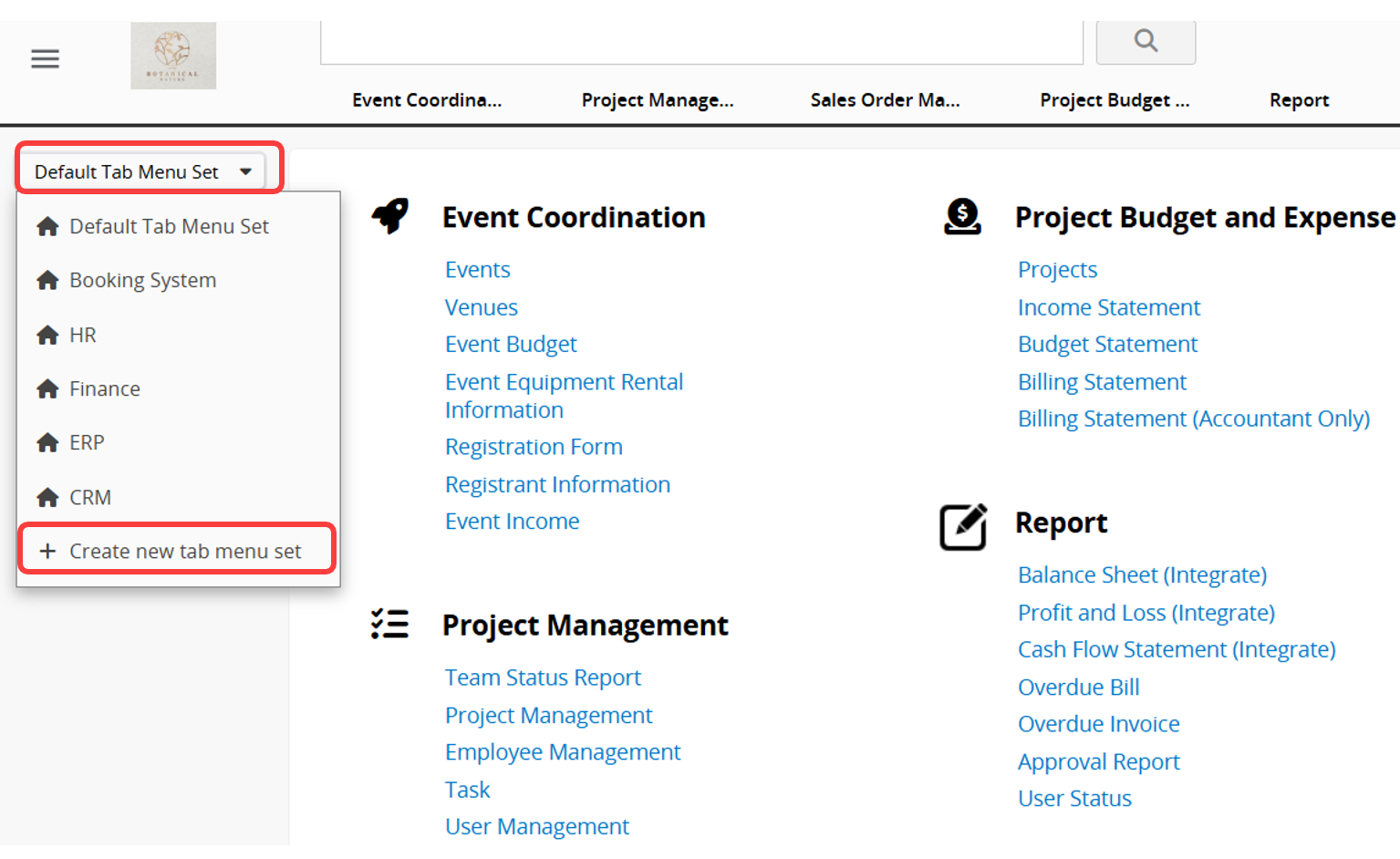
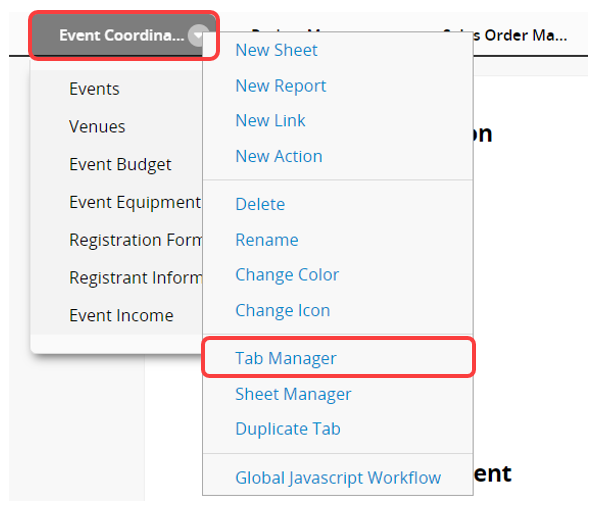
You can add and edit Tab Menu Sets through Tab Manager, accessible in two ways:
1. Click on the drop-down menu at the top-left of the page and select Default Tab Menu Set, which contains all uncategorized tabs. Then, choose Create new tab menu set next to the "+" sign.
2. Right-click on any tab at the top and select Tab Manager.
To add a new tab menu set, click on Create new tab menu set and name it.
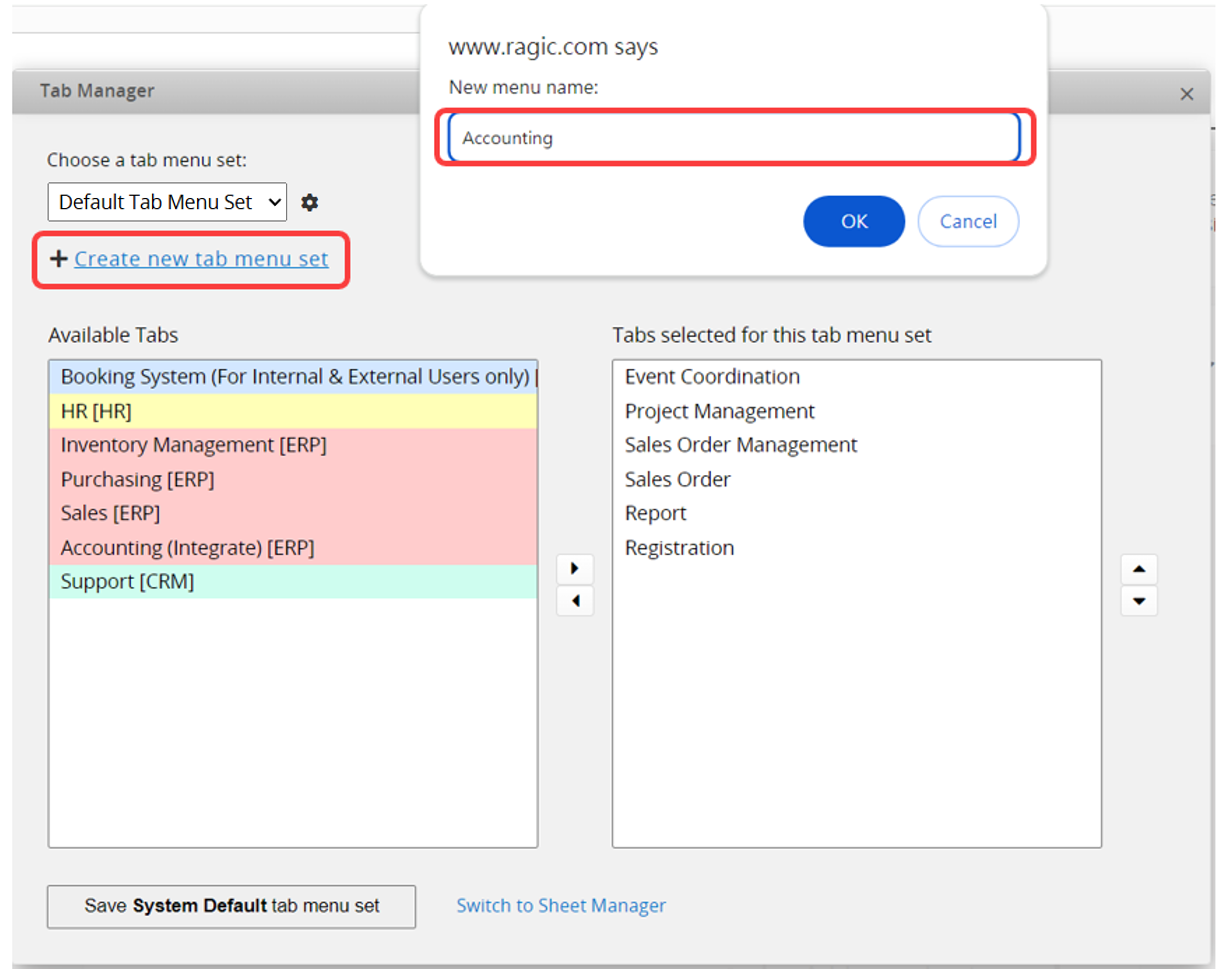
Select the tabs you would like to add to the new Tab Menu Set and click "Save".
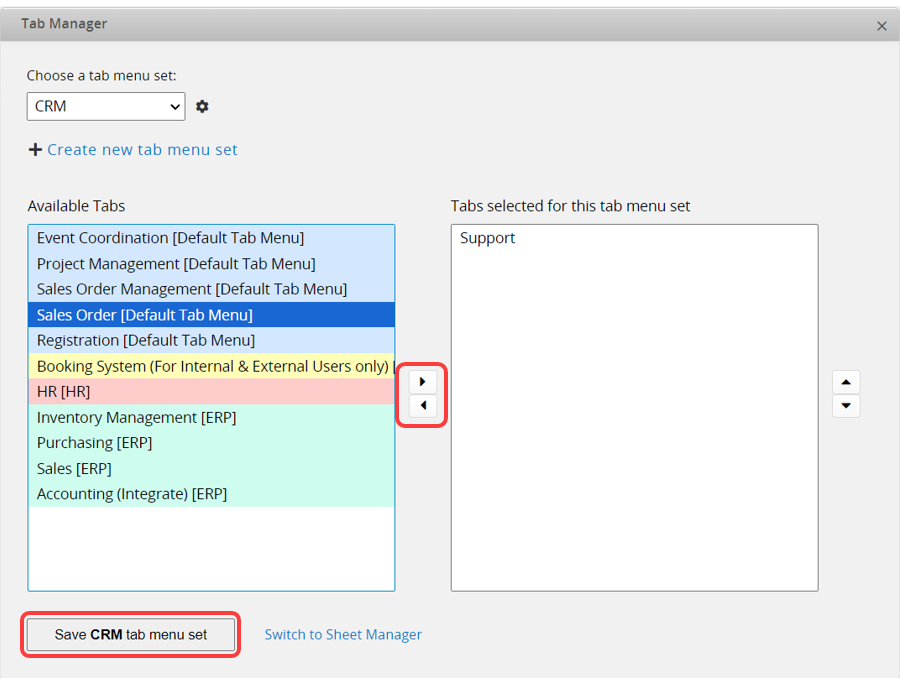
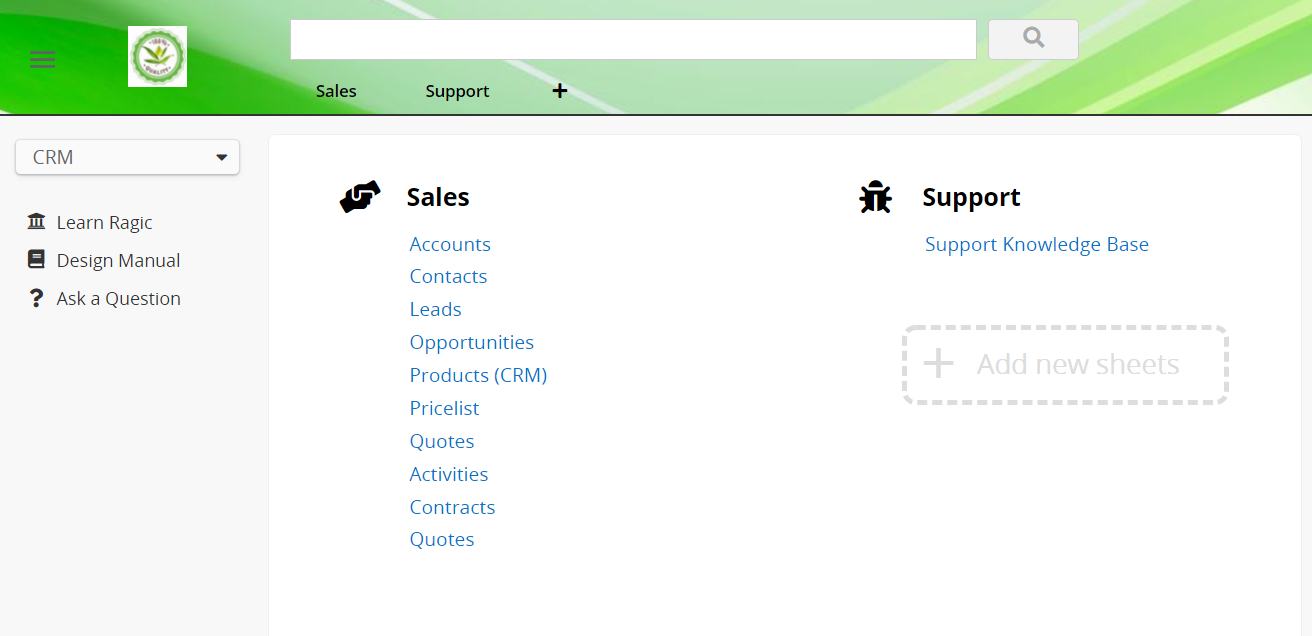
Access the new Tab Menu Set by selecting it from the drop-down menu at the top-left of the page. Only the tabs you added will be displayed on this page. You can also add different logos and banners to each Tab Menu Set.
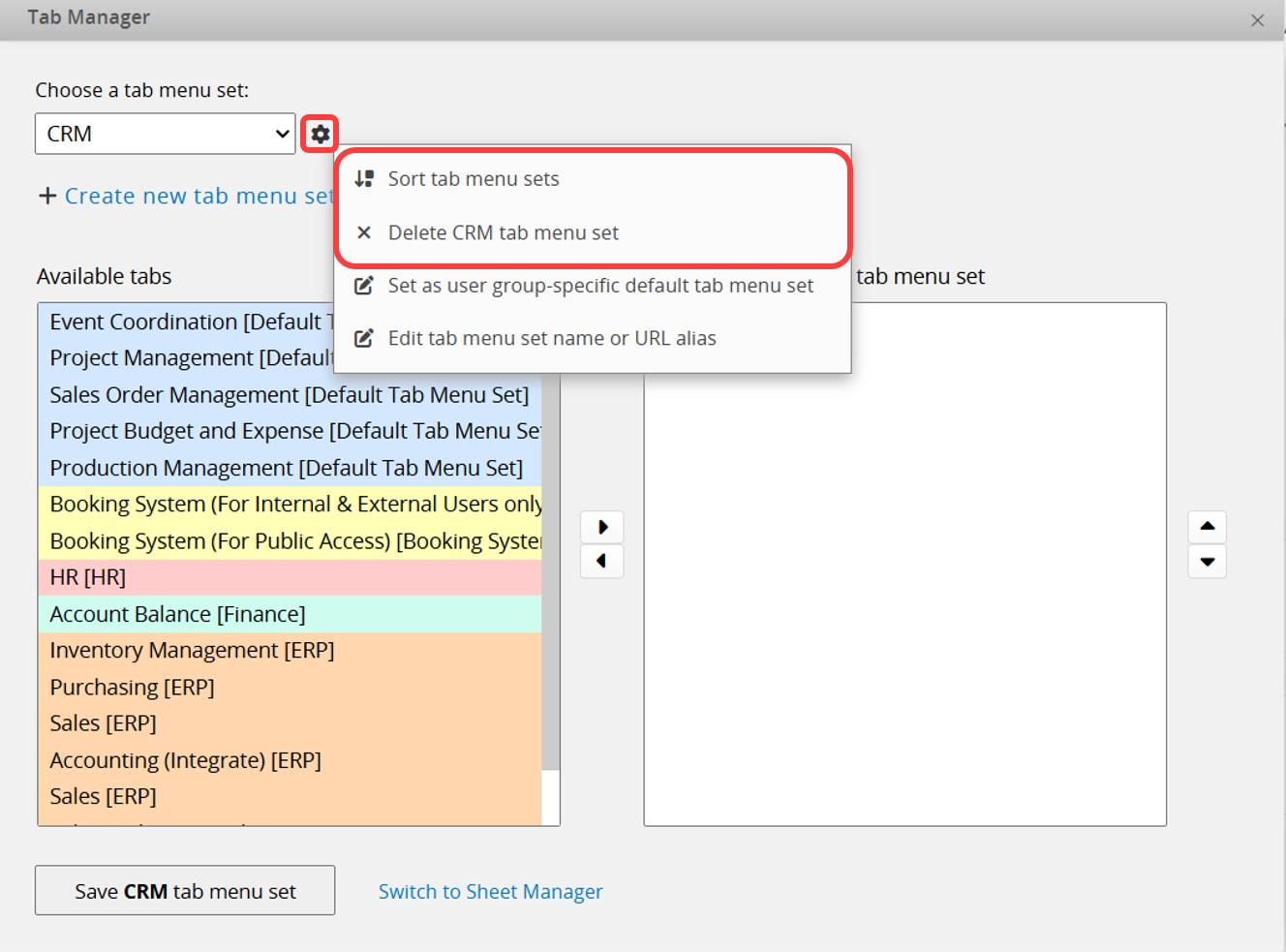
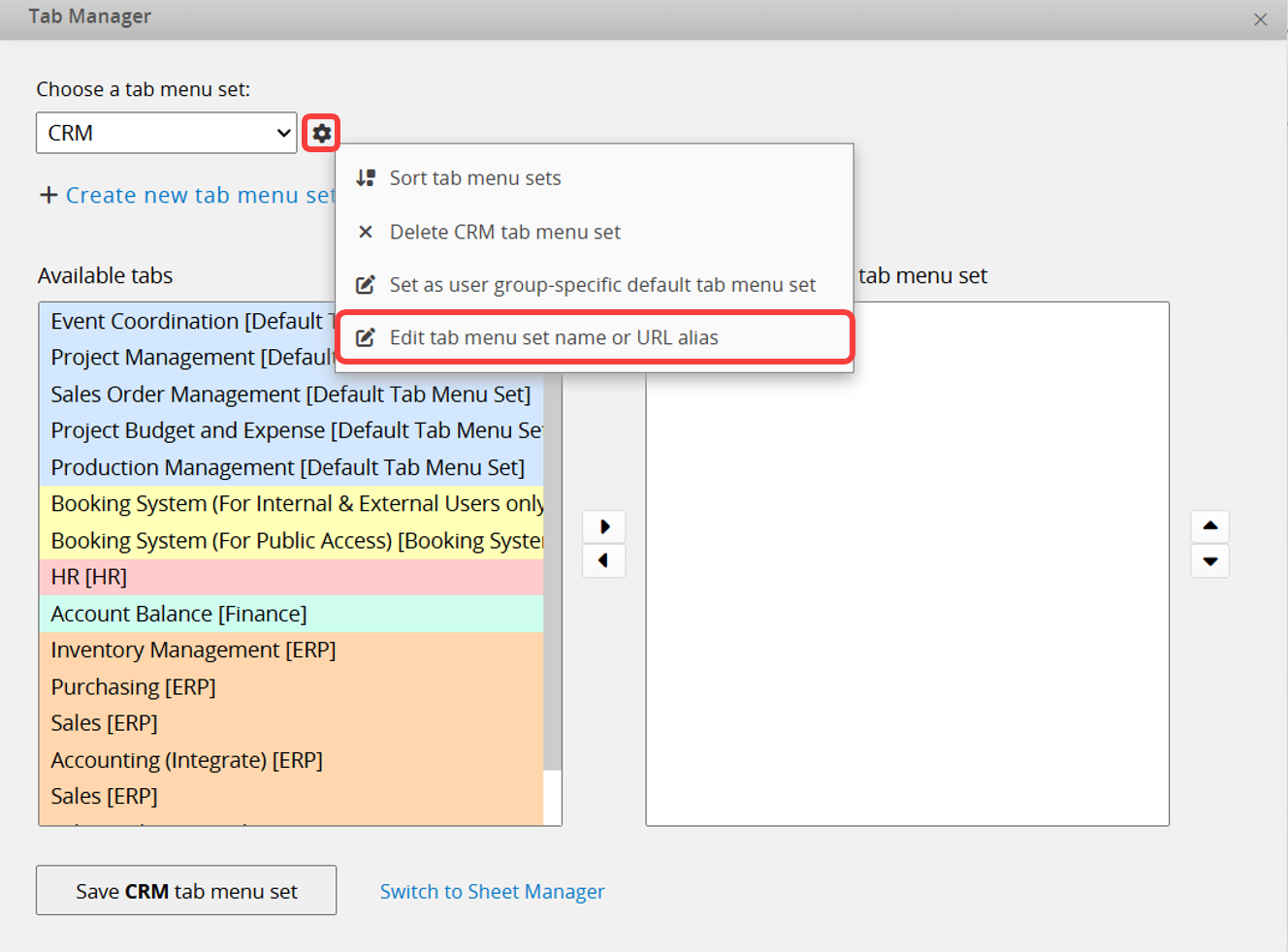
Click the gear icon next to the Tab Menu Set name to sort the Tab Menu Sets or delete it.
Note:
1. Tabs added to other Tab Menu Sets will no longer be displayed in the Default Tab Menu Set.
2. Reports will move along with their source sheets.
Click the gear icon next to the Tab Menu Set name and select Edit tab menu set name or url alias.
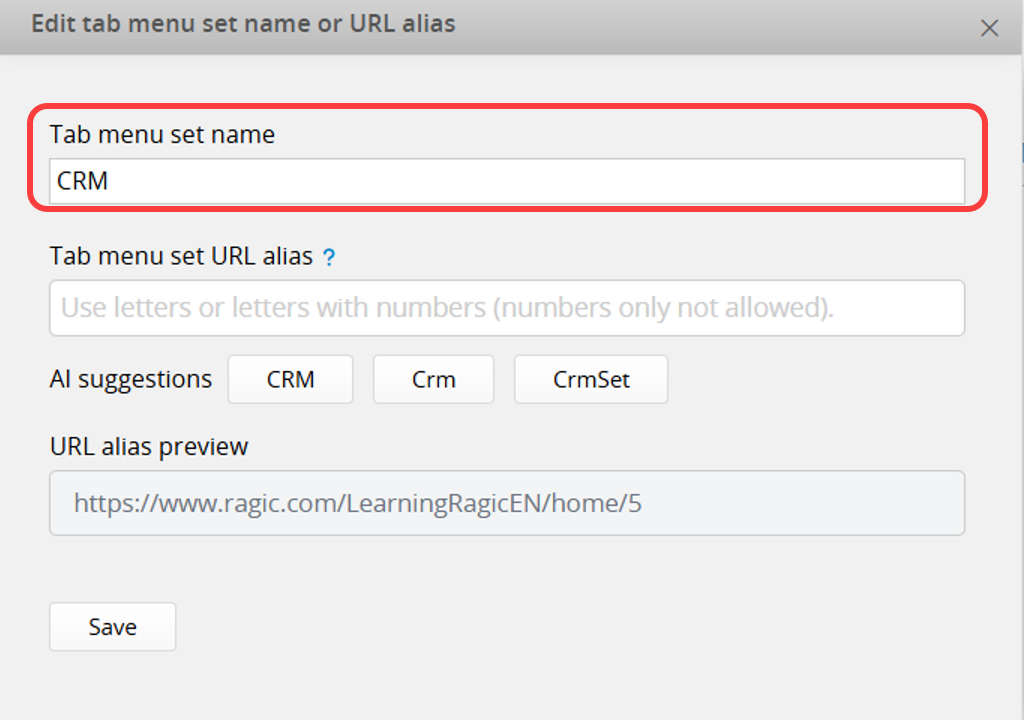
In this window, you can rename the Tab Menu Set. A preview of the URL alias is displayed below. Because the URL is generated according to the Tab Menu Set order, reordering or deleting Tab Menu Sets will cause the URL to change. You can set the Tab menu set URL alias to keep it fixed.
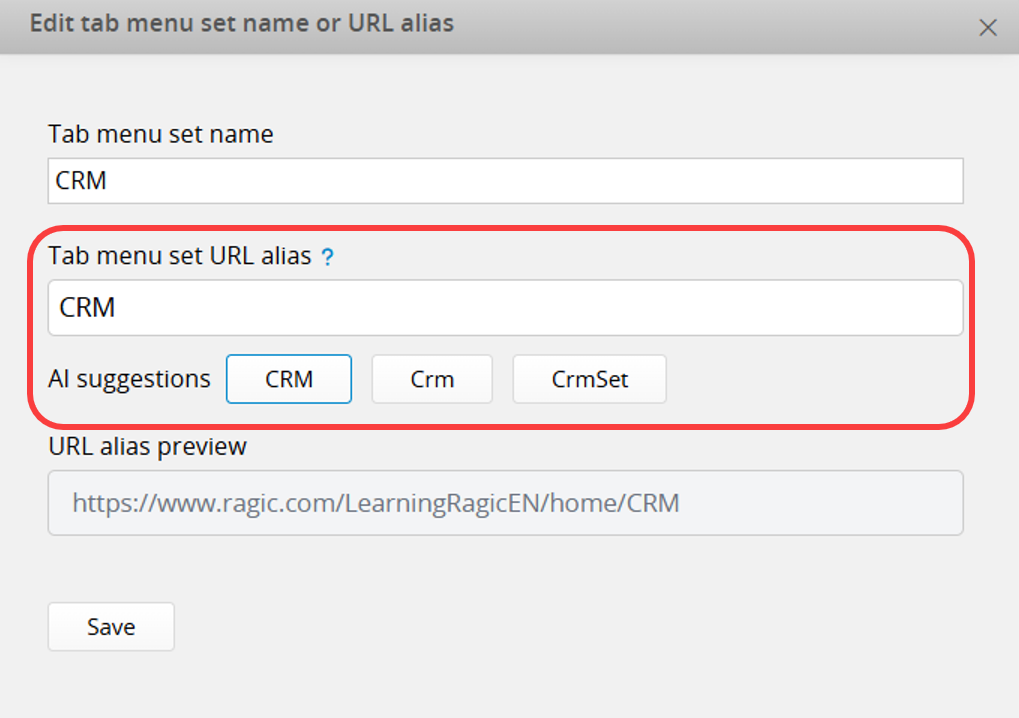
You may use the AI-generated suggestions or enter your own custom alias.
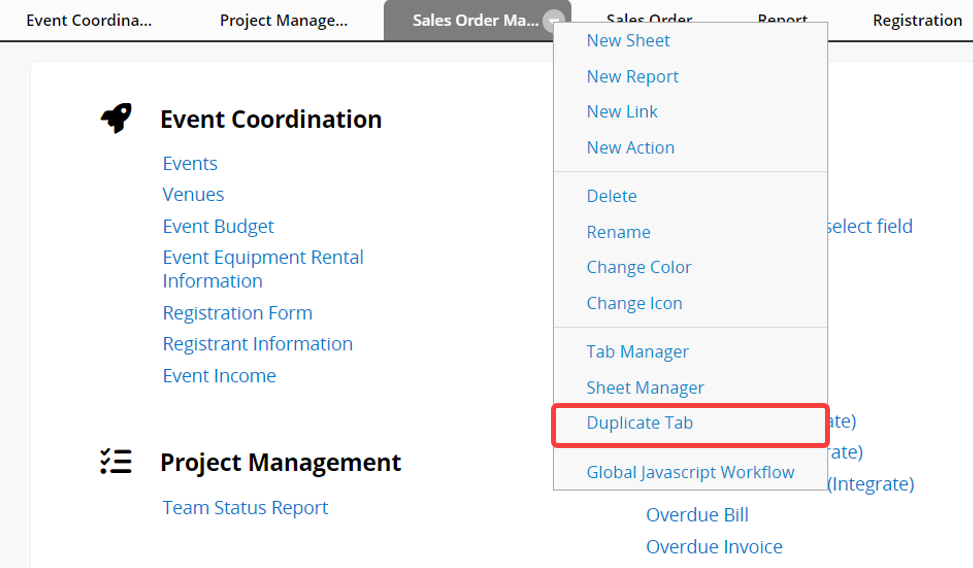
If you have a "Sales Order Management Tab" and there are linking relationships between sheets within it, and you want to duplicate an identical set of designs (including linking relationships but excluding data), you can use the Duplicate Tab instead of copying individual sheet and manually adjusting the link.
Click on the inverted triangle icon next to the tab name or right-click, and choose Duplicate Tab.
Select which sheets you want to copy.
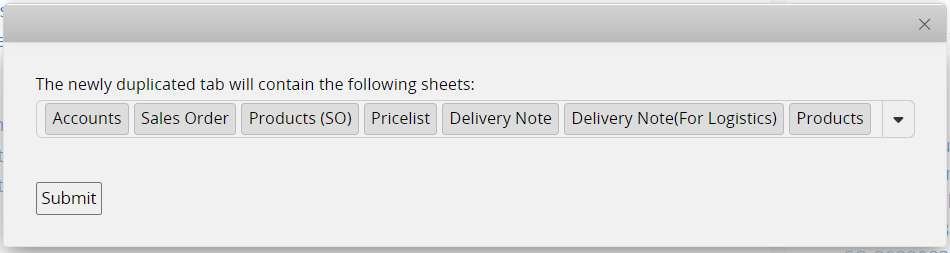
After submitted, all selected sheets will be copied together! The linking relationships between sheets will be connected to the newly copied set of sheets, not the source ones.
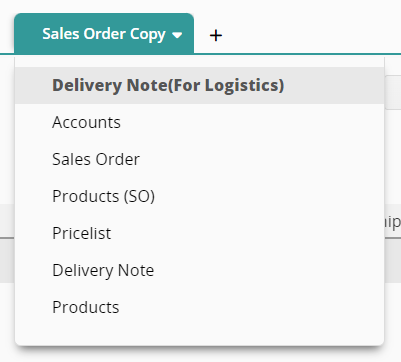
This feature is for duplicating the entire tab and its sheet designs. Unlike Multiple Versions, the data won't be synced after duplication.
When your database has numerous tab menu sets and you want to simplify the process of finding sheets for users upon login, you can direct them to commonly used tab menu sets. For instance, users in the "Sales" group can be directed to the "ERP" tab menu set, while users in the "HR" group can be directed to the "HR" tab menu set.
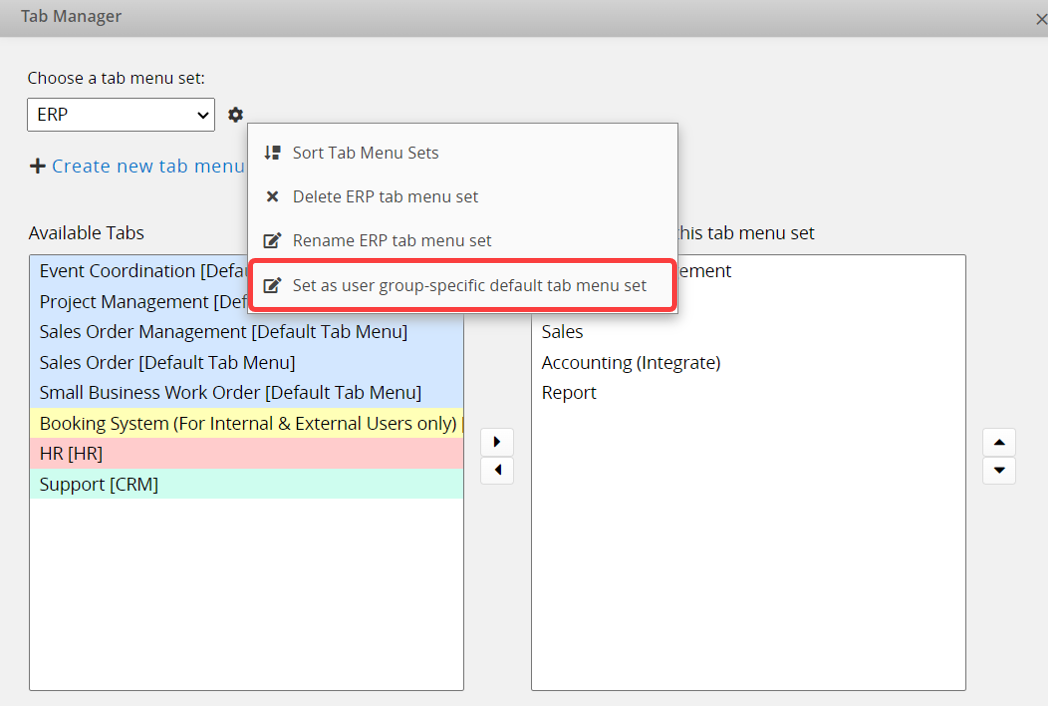
First, open the Tab Manager, select the tab menu set you want to configure, and click the "gear icon" next to it. Choose Set as user group-specific default tab menu set.
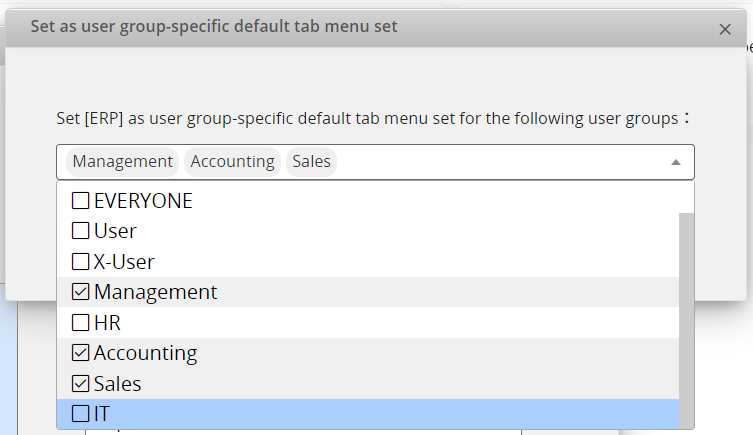
In the window, specify which Groups should have this tab menu set as their default, and remember to Save. Once done, users in that group will be directed to this tab menu set upon login.
Note: If users belong to multiple groups, each configured with a different specified default tab menu set, their default will be determined by the order of these sets. If users can't access any sheets or tabs in a set, they will be directed to the next one. If none meet the criteria, they will be directed to the database's Default Tab Menu Set.
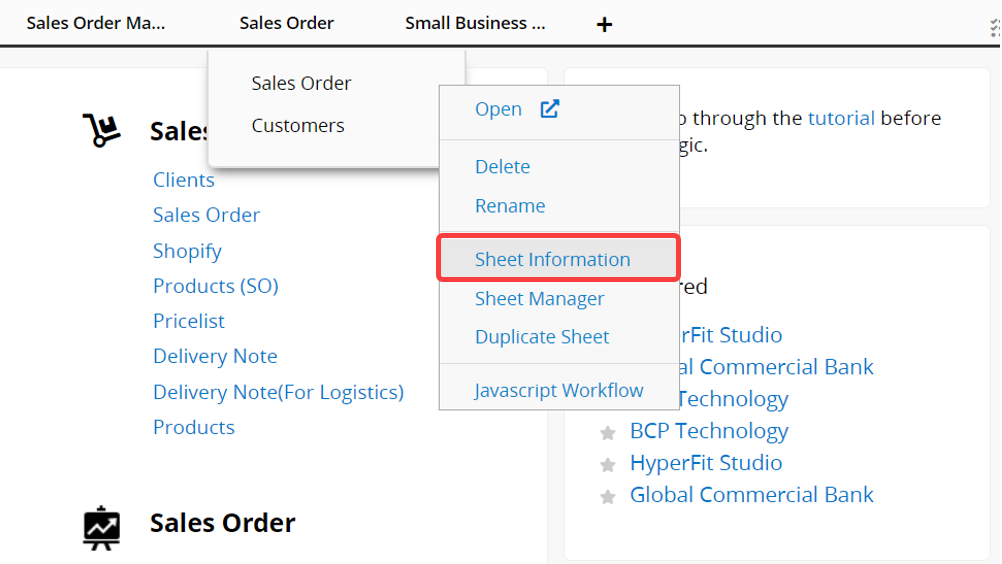
Select the sheet you would like to view and right-click to access the Sheet Information.
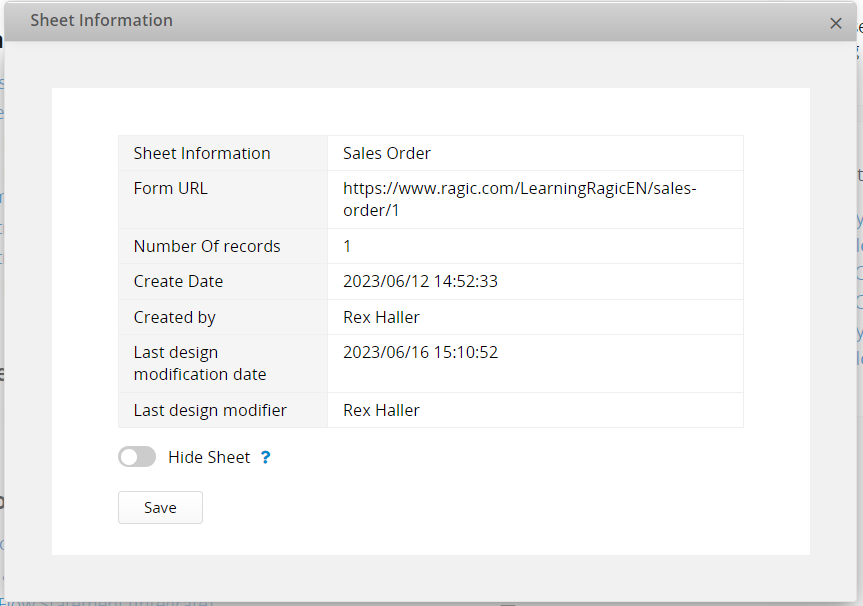
In the window, you can see the following information.
You can hide a sheet from users who do not have SYSAdmin access rights in Sheet Information. This feature helps to maintain a clear interface by concealing the sheet.
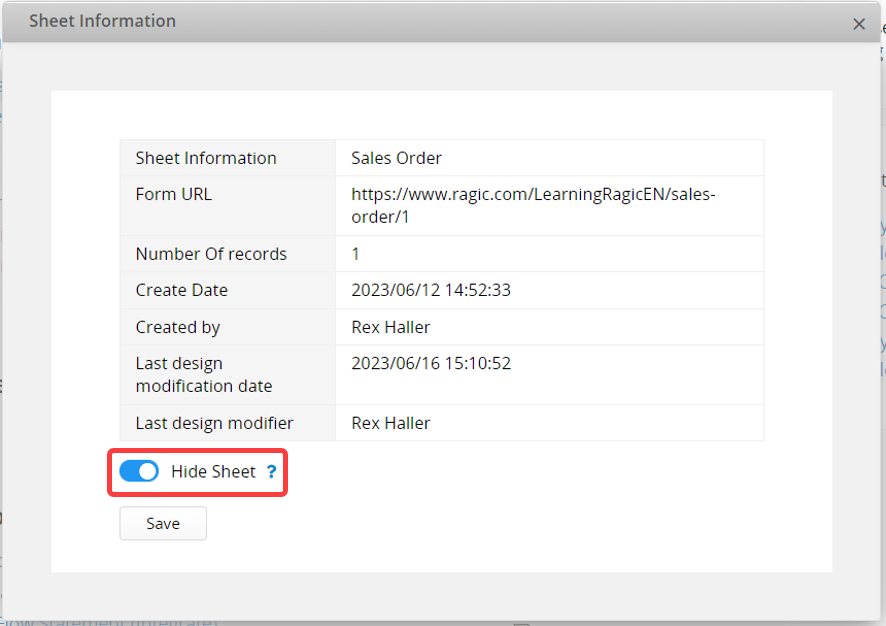
Users can still access this sheet via its URL. If this sheet is a linked sheet within the Link & Load feature, it will remain accessible in those configurations.
If you want to change sheet order, you can hover on any tab or sheet and right-click to open Sheet Manager.
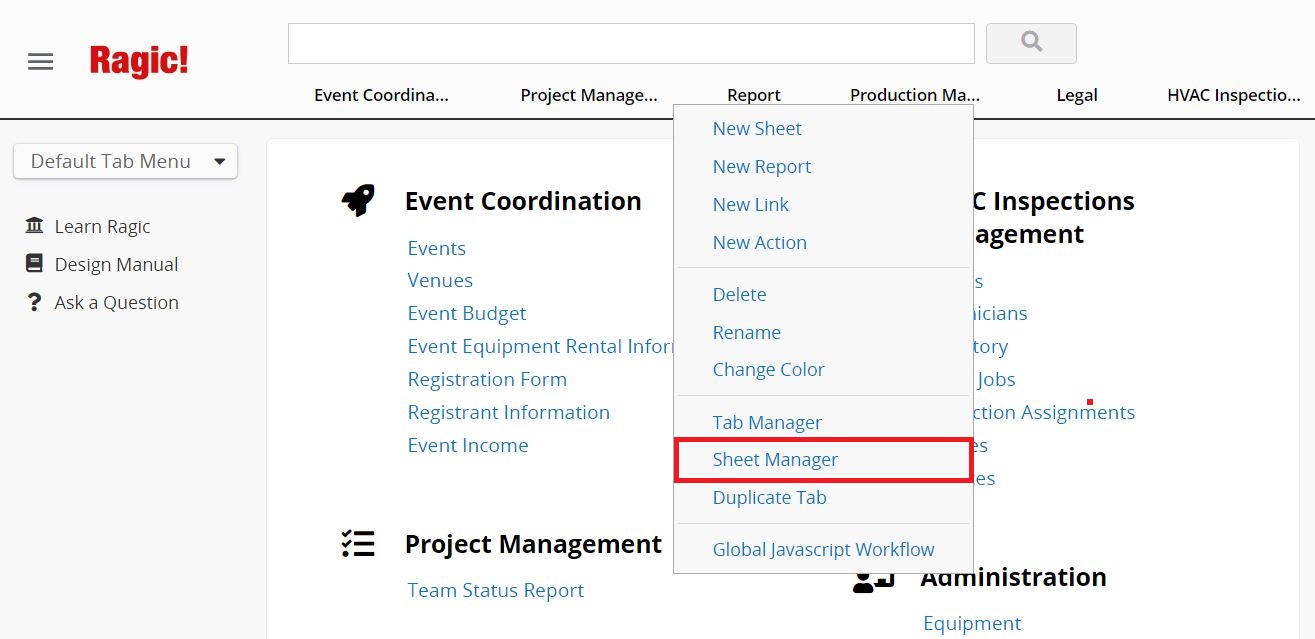
Select a sheet and click the horizontal arrows to move it to other tabs, or click the vertical arrows to change its order within the same tab.
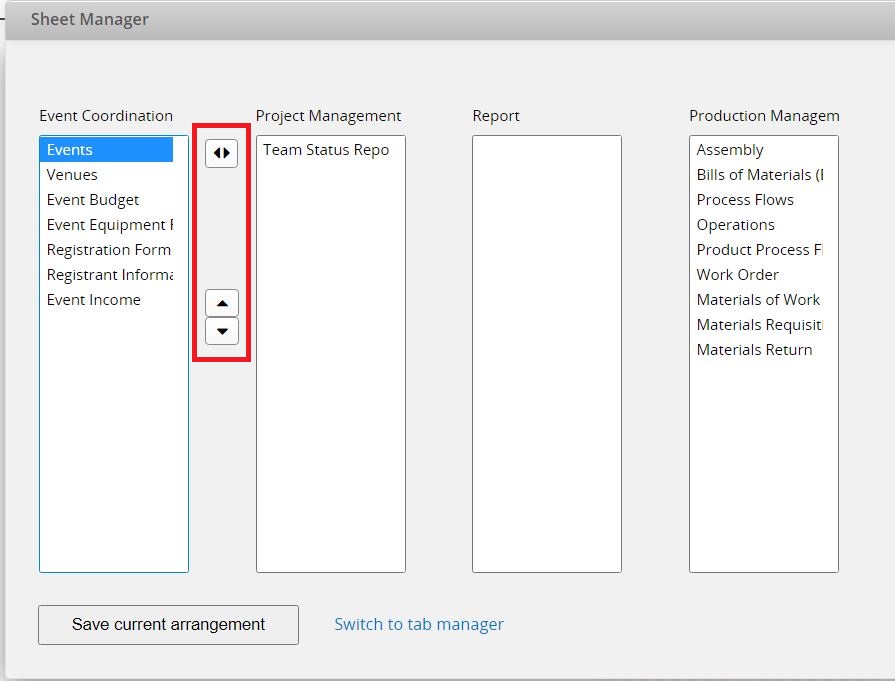
Remember to save before leaving.
To delete the sheet or tab, hover over it and an "arrow" icon will appear on the right. Click on the arrow, then select "Delete" to remove it. Alternatively, right-click on the sheet or tab you want to delete, then select "Delete".
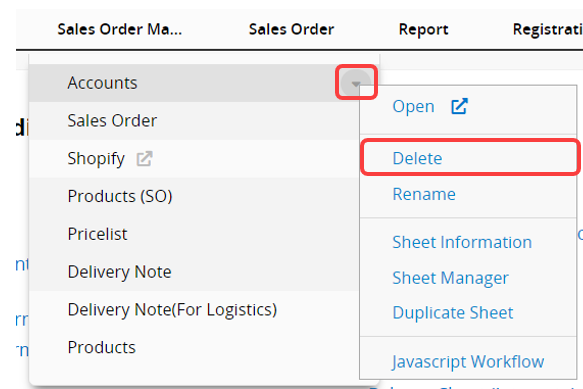
If the system stops you from deleting a sheet, please refer to this document.
If you accidentally deleted a tab or sheet and would like to recover it, you can check the Recycle Bin.
 Thank you for your valuable feedback!
